

Top Guide: google search console tutorial
Think of Google Search Console (GSC) as your direct line to Google. It’s a free, powerful tool that gives you a behind-the-scenes look at how restaurant owners and chefs are actually finding your equipment supply website—insights you simply can't get anywhere else. This isn't going to be some dense, jargon-filled tutorial; we're focusing on how you can use GSC to make real-world improvements to your business.
Why GSC Is Your Digital Command Center
If you want to turn online visitors into loyal customers, you first need to understand how they get to your digital doorstep. To really get the most out of GSC, it helps to start by understanding the basics of Search Engine Optimization (SEO). GSC is the tool that puts that crucial SEO data right in your hands, showing you what’s working and, just as importantly, what isn't.
It’s your window into how Google sees your site. While other analytics platforms show you what people do after they land on your website, GSC tells you the story of how they found you in the first place. This is a critical distinction, and it's the key to making smarter marketing decisions for your equipment supply business.
GSC vs Google Analytics At a Glance
A lot of business owners mix up Google Search Console and Google Analytics. They work beautifully together, but they do completely different jobs. Think of it this way: GSC is your pre-visit intelligence, while Google Analytics is your on-site visitor report.
To clear things up, here’s a quick comparison of their unique roles.
| Feature | Google Search Console (GSC) | Google Analytics (GA4) |
|---|---|---|
| Primary Focus | How your website performs in Google Search results. | How users behave once they are on your website. |
| Key Questions Answered | Which search queries bring buyers to my site? | Which equipment category pages are most popular? |
| Example Metric | Clicks and Impressions from Google Search. | Average session duration and pages per visit. |
This table shows how each platform provides a different piece of the puzzle, giving you a complete picture of your online performance when used together.
From Data to Deals: A Real-World Scenario
Let's put this into practice. Imagine an equipment supplier sees that their website traffic has gone flat. He logs into his GSC Performance report and finds something fascinating: dozens of people are landing on his site every month after searching for "energy-efficient commercial convection oven."
The problem? His website barely mentions energy efficiency on a cluttered, hard-to-read product page. Armed with this new data, he creates a brand-new blog post titled "The Best Energy-Efficient Ovens for High-Volume Kitchens," complete with spec sheets, case studies, and a clear call-to-action for requesting a quote.
Just a few weeks later, he sees a huge spike in quote requests specifically for his energy-efficient ovens. That’s the magic of GSC. It turns raw search data into business intelligence that generates more leads. With Google handling a mind-boggling number of searches every day, websites using GSC effectively can boost their organic traffic by up to 28%. For more on this, check out the latest Google search statistics on sqmagazine.co.uk.
Getting Your Equipment Supply Website Connected to GSC
Before you can dig into all the juicy data, you've got to prove to Google that you actually own your website. This first step is called verification, and it's what connects your site to Google Search Console, unlocking all the reports we’re about to cover. Think of it as Google handing you the keys to your digital command center.
The good news? This sounds way more technical than it actually is. You definitely don't need to be a web developer to get it done, especially with how easy modern website builders make things. For most equipment suppliers, a couple of straightforward methods will do the trick.
Choosing Your Verification Method
Google gives you a few ways to get verified, but two of them are perfect for their simplicity. Which one you pick usually comes down to what platform your website is built on (like WordPress or Shopify) and what other Google tools you're already using.
Here are the most common paths people take:
- Google Analytics Tracking Code: If you already have Google Analytics set up to watch your website traffic—and you should—this is by far the easiest route. Since that code is already on your site, Google uses it to instantly confirm you're the owner. It’s pretty much a one-click verification.
- HTML File Upload: This one sounds a bit old-school, but it's reliable. Google gives you a unique HTML file to download. You then upload it to your website's main folder through your hosting provider's file manager. If you’re comfortable with basic file management, it’s a solid choice.
-
HTML Tag: This involves copying a little snippet of code (a meta tag) from GSC and pasting it into the
<head>section of your homepage’s code. Many website builders like Squarespace and Wix have a special field for "header code," making this a simple copy-and-paste job.
For equipment websites on WordPress, I always recommend a plugin like Yoast SEO or Rank Math. They make this process ridiculously easy by giving you a specific field where you just paste a code from GSC. The plugin does all the heavy lifting for you.
Domain Property vs. URL Prefix
When you add your site, GSC will present you with a choice: a "Domain" property or a "URL Prefix" property. The Domain property is great because it automatically tracks all versions of your site, but it requires DNS verification, which can get a little technical for beginners.
For most equipment suppliers, the URL Prefix method is the way to go. It’s much more straightforward. The only catch is that you need to add every single version of your website separately to make sure you're capturing all the data.
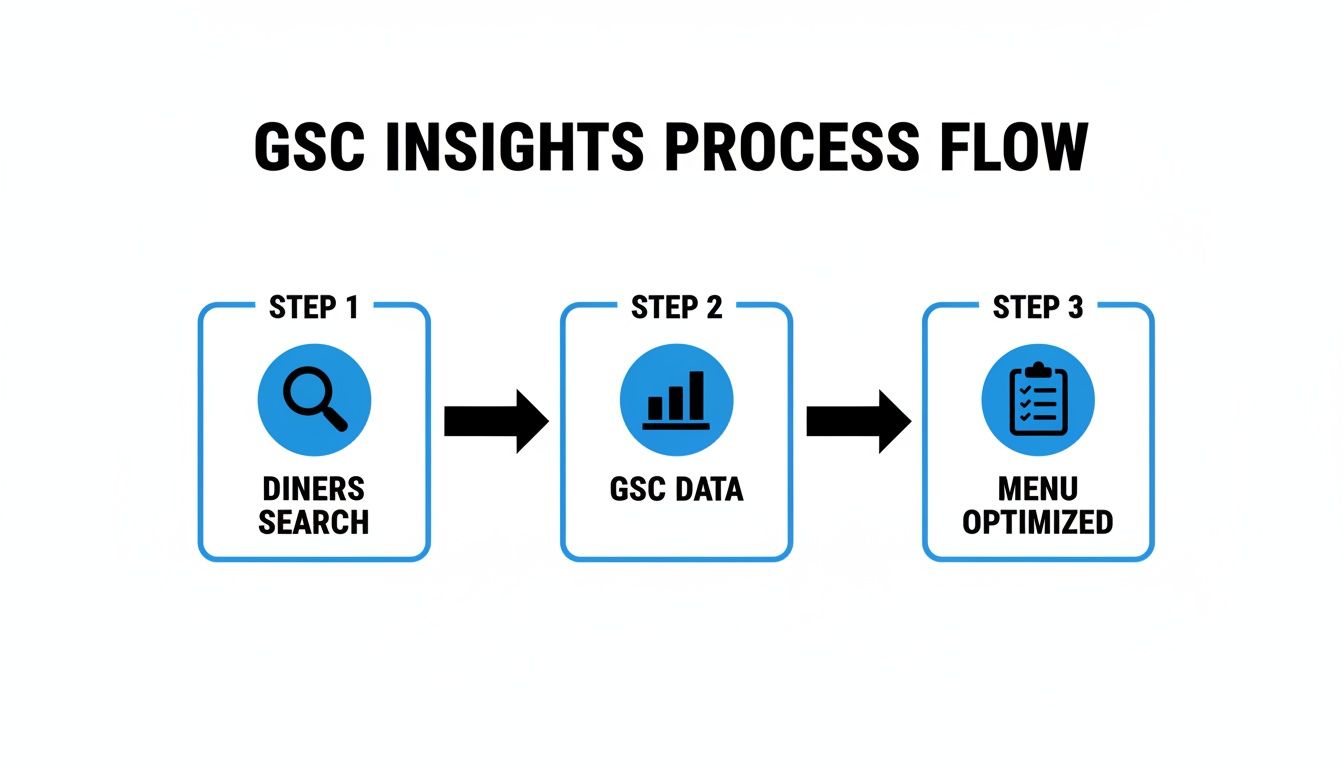
This whole process is about connecting the dots—seeing what potential buyers are searching for and using that GSC data to make sure your product pages are what they find.
It sounds tedious, but you need to verify each of these variations individually:
http://yourequipmentsite.comhttps://yourequipmentsite.comhttp://www.yourequipmentsite.comhttps://www.yourequipmentsite.com
Taking a few extra minutes to add all four ensures that no matter how a customer types in your address or which old link they click, their search data gets recorded. This gives you a complete, accurate picture of your performance right from day one. Once that's done, you're officially in and ready to see what GSC can do.
Ready to see exactly what chefs and restaurant owners are typing into Google to find equipment like yours? That's what the Performance report is all about.
This isn't just a bunch of charts; it's the heart of Google Search Console. It cuts through the guesswork and shows you the actual search terms that lead real people straight to your website.

Let's break down the four core metrics you'll find here. Once you get a handle on them, you can start making smarter decisions that fill your sales pipeline and boost those online orders.
Demystifying the Four Core Metrics
At the top of the report, you’ll see a graph with four key numbers. It might look a little intimidating at first, but each one tells a simple, distinct part of your business's online story.
Here’s the breakdown:
- Clicks: This one is easy. It's the number of times someone actually clicked your website link from a Google search. Every click is a potential customer who was interested enough to check you out.
- Impressions: An impression happens every time your website appears in a search result someone sees. They don't have to click—just seeing it on their screen counts. This shows you how often Google is presenting your equipment to potential buyers.
- Average CTR (Click-Through Rate): Your CTR is simply the percentage of impressions that turned into a click (Clicks ÷ Impressions = CTR). This is a huge deal. A high CTR means your page titles and descriptions are grabbing people's attention and making them want to learn more.
- Average Position: This is your site's average rank in the search results. A position of 1 is the top spot, while a position of 11 puts you at the top of the second page, where far fewer people will see you.
These four numbers work together. For instance, getting tons of impressions but very few clicks is a classic sign that your page title isn't very appealing, even though Google is showing it to a lot of people.
Filtering Data to Find Actionable Insights
The real magic of the Performance report is in the filters. This is where you can slice and dice the data to get answers to real business questions.
Let’s say you sell a wide range of equipment, from refrigerators to charbroilers. With a quick filter, you can isolate the search queries bringing traffic to your refrigeration category versus your grilling equipment. You can see if your blog post about "how to choose a commercial ice machine" is actually attracting hotel managers or if your "heavy-duty charbroiler" page is ranking for valuable searches from steakhouses.
Filtering by page is one of the most powerful and underrated features in this report. It lets you zoom in on a specific product, a blog post, or a category page to get a crystal-clear view of what’s working—and what’s not—for individual parts of your business.
Turning Missed Opportunities into Sales
Here’s a common scenario I see with equipment suppliers all the time. You check your Performance report and notice the search query "commercial deep fryer financing" has 5,000 impressions over the last month but only 50 clicks. That’s a dismal CTR of just 1%.
This is a massive missed opportunity. People are clearly searching for what you offer, and Google thinks your page is relevant enough to show it thousands of times. But for some reason, your listing just isn't convincing them to click.
The culprit is often a bland, generic page title. Your financing page might just be titled "Financing" in the search results. Think about it—how boring is that?
By changing it to something more compelling, like "Commercial Deep Fryer Financing Options | [Your Company Name]," you speak directly to what the searcher wants and give them a reason to choose you. This simple tweak can dramatically increase your CTR, turning all those impressions into website visits and, ultimately, sales leads.
Finding and Winning Your "Striking Distance" Keywords
One of the smartest strategies you can use is hunting for your "striking distance" keywords. These are the search terms where you're almost there—ranking on the second or third page of Google, usually in positions 11-30.
These keywords are SEO gold. Why? Because Google already sees your site as pretty relevant for them. You don't have to start from scratch; you just need to give these pages a little push to get them onto the first page, where the real action happens.
To find them, just filter your report to show keywords where your average position is greater than 10. Look for relevant terms that have a decent number of impressions. Once you have a list, you can focus on improving the pages that rank for them. This could mean:
- Adding more detail: Flesh out your product descriptions or add a new section with technical specifications.
- Improving the title and description: Write a more descriptive and enticing meta title and description that makes people want to click.
- Building internal links: Add links to this page from other important pages on your site, like your homepage or a popular blog post.
Focusing your energy on these striking distance keywords is a fantastic way to score some quick wins and drive a noticeable boost in traffic.
Making Sure Google Finds Every Product and Page
Knowing how your site performs is great, but it’s pretty useless if Google can't even find your most important pages. You could have a stunning new page for your commercial charbroilers or a killer blog post on choosing the right convection oven, but if Google doesn't know it exists, it might as well be invisible.
This is where we get into the more technical side of Google Search Console, but don’t worry—I'll keep it simple and actionable. Let's make sure Google has an accurate map to every corner of your website.
Submitting Your Website's Roadmap
Think of an XML sitemap as a digital floor plan for your website. It’s just a file that lists every single important page you want Google to know about, from your homepage and product categories to your latest blog post.
Submitting this map is like handing a delivery driver a clear, updated list of addresses. It’s a direct line of communication with Google.
Without it, Google's crawlers have to discover your pages by just following links from one page to another, which can be slow and inefficient. When you launch a new product line or a page for a seasonal promotion, you want Google on it fast. A sitemap makes that happen.
Most modern website platforms like WordPress (with an SEO plugin) or Shopify automatically generate and update your sitemap. Finding it is usually as simple as adding /sitemap.xml to the end of your domain name.
Once you have that URL, it's a quick job in GSC:
- Go to the Sitemaps report under the "Indexing" section in the left-hand menu.
- Pop your sitemap URL into the "Add a new sitemap" field.
- Click Submit.
GSC will process it and show a "Success" status if everything looks good. Now, whenever you add a new page, your sitemap tells Google about it, which seriously speeds up the discovery process.
Using the URL Inspection Tool for Diagnostics
So what happens when a specific page, like your newly launched "Commercial Ice Machines" category page, isn't showing up in search results? The URL Inspection Tool is your personal diagnostic for any single page on your site. Honestly, it's one of the most useful features for troubleshooting.
Just paste the full URL of the page into the search bar at the very top of Search Console. The tool runs a live check and tells you its current status straight from Google's index.
This report reveals some critical info:
- URL is on Google: This is what you want to see. It means the page is indexed and can appear in search results.
-
URL is not on Google: This points to an issue. The report will give you a reason, like the page being blocked by a
noindextag or because it's a brand-new page Google hasn't crawled yet.
If a page isn't on Google, you can click the "Request Indexing" button. This basically asks Google to prioritize crawling that specific page—perfect for new content you want in front of customers ASAP. For a deeper dive into this, check out our guide on how to get your website indexed by Google.
Decoding the Index Coverage Report
While the URL Inspection Tool is for single pages, the Page Indexing report (found under "Indexing") gives you the 30,000-foot view of your entire website. It shows you which pages are indexed and, more importantly, which ones aren't—and why.
You'll see a chart breaking down your pages into "Indexed" and "Not indexed." Don't freak out if you see a large number of non-indexed pages; many of these are intentional (like admin pages or duplicate content).
The key is to look at the reasons for non-indexing. GSC groups these issues so you can tackle them efficiently. Focus on fixing errors that are preventing valuable pages from being seen by potential customers.
Here are a few common statuses you'll probably run into:
| Status | What It Means | What to Do |
|---|---|---|
| Crawled - currently not indexed | Google has visited the page but decided not to index it. This often happens with lower-quality or thin content. | Review the page. Add more valuable content, technical specs, or high-quality images. Make sure it provides a good user experience. |
| Discovered - currently not indexed | Google knows the page exists but hasn't gotten around to crawling it yet. This is common for brand-new sites. | Be patient. If it persists, build more internal links to the page from other important pages on your site to signal its importance. |
| Not found (44) | The page doesn't exist. This often happens if you deleted a page but didn't redirect the old URL. | If the page was important, create a 301 redirect to a relevant, live page. If it was an old, unimportant page, you can usually ignore this. |
By checking these reports regularly, you can ensure that Google always has an accurate, up-to-date view of your website. This is how you make sure every product, category, and blog post is ready to be found by buyers.
Improving the Online Experience for Your Customers
In the restaurant equipment world, a customer's experience starts long before they ever request a quote. It often begins with a quick search on their phone for a replacement part or a new piece of kitchen equipment. That first digital impression matters, and the "Experience" section in Google Search Console is your toolkit for making sure it's a great one.
This part of Search Console goes beyond just keywords and clicks. It’s all about how people feel when they use your website. Google pays close attention to this, and you should too. A slow, clunky product page can be just as off-putting as poor customer service.
Understanding Core Web Vitals
Think of Core Web Vitals as the technical side of good customer service. These aren't just nerdy metrics; they measure your website's health from a real user's perspective, focusing on loading speed, how quickly someone can interact with your page, and whether things jump around unexpectedly while loading.
For any equipment supplier, this report is absolutely critical. Picture a chef in a busy kitchen, trying to pull up a spec sheet on their phone. If your page takes more than a couple of seconds to show up, they're gone. They'll just check out the competitor next door. In fact, studies show that a delay of just 1 to 3 seconds can increase the chance of someone leaving your site by 32%.
Search Console neatly breaks your URLs into three buckets: "Good," "Needs improvement," and "Poor." Your mission is to get your most important pages—like your product categories, contact forms, and homepage—into that "Good" column. GSC even groups pages with the same problems together. This means you can go to your web developer with a clear request like, "It looks like all our product pages are slow on Largest Contentful Paint (LCP)," giving them an exact target to fix. Going a step further to optimize website performance beyond what GSC flags can really make a difference, improving user experience and helping you rank better.
Fixing Common Mobile Frustrations
Sticking with user experience, the Mobile Usability report is your next stop. This is where Google tells you which of your pages are a pain to use on a smartphone. Considering the huge number of equipment searches that happen on the go, you can't afford to ignore this.
It flags specific, common issues that make people want to throw their phones, such as:
- Text too small to read: Forcing buyers to pinch-and-zoom to see product specs is a guaranteed way to lose them.
- Clickable elements too close together: Nothing is more annoying than trying to tap "View Details" but hitting "Add to Cart" because the buttons are crammed together.
- Content wider than screen: Making users scroll side-to-side just to see everything is a major usability foul.
The best part is that Search Console doesn't just point out these flaws. It gives you a list of the exact URLs that have the problem. You can work through the list, fix the issues, and then click the "Validate Fix" button to let Google know you've sorted it out.
Unlocking Rich Results with Enhancements
Finally, we get to the Enhancements section. This is where the magic happens, and where you can make your products pop in a crowded list of search results. This report checks whether your structured data—special code that helps search engines understand your content—is implemented correctly.
For an equipment supplier, this is a game-changer. When you get structured data right, Google can reward you with eye-catching "rich results." These are the extra bits of info that show up directly in the search listings, like:
- Star ratings from customer reviews
- Pricing information
- Product availability (in stock / out of stock)
- A direct link to your product page
Imagine a potential customer sees your listing for a commercial range with a 4.8-star rating and the price displayed right there. It instantly builds trust and gives them the info they need without an extra click. This provides a massive visual edge over competitors who just have a plain blue link. The Enhancements report will tell you if your "Product," "Review," or "FAQ" markup is valid or if errors are holding you back. If you suspect deeper issues are hurting your site, it might be worth looking into the process of a technical SEO audit.
Your Top Google Search Console Questions, Answered
Even with a step-by-step guide, you're bound to have questions once you start digging into Google Search Console. It happens to everyone. This last section tackles the most common questions I hear from restaurant owners and equipment suppliers, giving you quick, practical answers to get you over those initial hurdles.
Think of this as your go-to FAQ for turning GSC's data into real-world results.
How Long Does It Take for GSC Data to Appear?
When you first get your site verified, don't panic if your reports are empty. It's totally normal. Google needs a few days to start processing and populating all that information.
Also, keep in mind the data isn't live. There's typically a processing delay of about 48 hours. So, if you're looking at your reports on a Wednesday, you're likely seeing data from Monday. Don't expect to see yesterday's performance stats right away.
What's the Difference Between "Crawled" and "Indexed"?
This one trips a lot of people up, but it’s a critical distinction for figuring out why a page isn't showing up in search results. The two terms sound similar but mean very different things.
- Crawled: This just means a Googlebot has visited your page. It knows the URL exists and has scanned its content. That's it.
- Indexed: This is the important part. After crawling, Google decides if the page is worthy of being added to its massive search database. If it gets indexed, it's now eligible to show up in search results.
A page can be crawled but never get indexed. This often happens if Google thinks the page is low-quality, a duplicate of another page, or has a technical tag (like a "noindex" directive) telling it to stay out of the search results.
Should I Worry About Every Single Error in GSC?
Absolutely not. Seeing a long list of "errors" or "warnings" can be intimidating, but you don't need to fix every single one. It’s all about prioritizing what actually matters.
A "Not found (404)" error on some obscure blog post you deleted three years ago? Don't lose sleep over it. But a 404 error on your main "Commercial Charbroilers" category page? That's an emergency. That needs to be fixed immediately with a proper redirect.
Focus your energy on errors impacting your money pages—the ones that bring in reservations, leads, and sales.
How Often Should I Check Google Search Console?
You definitely don't need to live in GSC 24/7. For most restaurants or equipment suppliers, checking in once a week is a great rhythm. It's frequent enough to spot new trends and catch major issues before they spiral, but not so often that you get lost in tiny, meaningless daily fluctuations.
The exception is if you've just launched a brand-new website or a major new section. In that case, checking in every couple of days for the first few weeks is smart just to make sure Google is finding and indexing everything correctly.
Can GSC Help with Link Building?
It can, though indirectly. The Links report is your secret weapon for understanding your backlink profile. It shows you exactly which websites are linking to you and which of your pages are earning those links.
This data is pure gold for your strategy. If you see a bunch of food industry publications are linking to your "Guide to Commercial Ovens" page, that’s a huge signal. It tells you that reaching out to more industry blogs is probably a good use of your time. This process is often part of a broader blogger outreach campaign.
GSC won't build the links for you, but it gives you the intelligence to build a much smarter outreach strategy. To get more specific, you can learn more about how to check backlinks in Google.
At Charbroilers.com, we know that a powerful online presence starts with the right equipment. Our high-quality commercial charbroilers are designed to deliver the perfect smoky flavor and char-grilled texture your customers love. Whether you need a countertop model for a bustling diner or a floor model for a high-volume steakhouse, we have the durable and reliable equipment to make your menu shine. Elevate your culinary offerings by visiting us at https://charbroilers.com to find the perfect charbroiler for your kitchen.